
Download AnyRec Video Converter – Fast, Free, Secure Video Conversion Tool for Mac, Windows, Android & iOS
Overview
AnyRec Video Converter is a versatile trial‑version app developed by AnyRec Studio that simplifies the process of converting video and audio files across a wide range of formats. Designed with a clean, user‑friendly interface, the software allows both beginners and seasoned editors to transform media files in seconds while preserving original quality. Whether you need to convert a MOV file for an iPhone, change an MP3 to WAV for a podcast, or extract audio from a high‑definition video for a presentation, AnyRec handles the job with speed and reliability.
The app also includes handy metadata editing tools, background music insertion, and one‑click sharing options, making it an all‑in‑one solution for personal and professional projects. Its cross‑platform support extends to macOS, Windows, Android, and iOS, ensuring that you can work on any device without sacrificing performance. As a free trial, AnyRec offers a glimpse of premium features while remaining fully functional for everyday conversion tasks, making it a compelling choice for users seeking a secure, constantly updated video conversion tool.
Key Features
- Broad Format Support: Convert between M4A, MP3, MP4, WAV, MOV, FLAC, OGG, WMA, CAF, AC3, EAC3, DTS, DTS‑HD, AC4, ADX, ADY, DHE, DVR, DV and many more.
- High‑Speed Conversion Engine: Utilises GPU acceleration and multi‑thread processing to reduce conversion time by up to 70% compared to traditional tools.
- Metadata Editing: Edit title, artist, album, genre, and cover art directly within the app before exporting.
- Audio Overlay & Music Insertion: Add background tracks or replace existing audio tracks with a simple drag‑and‑drop interface.
- One‑Click Sharing: Export files directly to YouTube, Vimeo, Dropbox, Google Drive, or social media platforms.
- Batch Processing: Queue multiple files for simultaneous conversion, saving time on large projects.
- Cross‑Device Compatibility: Works seamlessly on macOS, Windows 10/11, Android 8+, and iOS 13+.
- Secure & Private: All conversions happen locally on your device; no cloud upload ensures data privacy.
- Regular Free Updates: The trial version receives monthly security patches and feature enhancements.
- Free Trial with No Watermark: Enjoy full conversion capabilities without intrusive watermarks or time limits.
Installation & Usage Instructions
Step‑by‑Step Installation
Downloading AnyRec Video Converter is straightforward. Visit the official AnyRec Studio website and click the “Download for Mac” button (or select Windows, Android, iOS as needed). The installer package is signed and secure, passing macOS Gatekeeper checks. After the download completes, open the .dmg (macOS) or .exe (Windows) file, then follow the on‑screen prompts: accept the license agreement, choose the destination folder, and click “Install.” On mobile devices, the app is available through the Apple App Store and Google Play Store; simply tap “Get” or “Install” and wait for the process to finish.
Launching the App
Once installed, launch AnyRec Video Converter from the Applications folder (macOS) or Start Menu (Windows). The first launch may request permission to access your media library; granting this access enables the app to locate video and audio files quickly. The interface presents a clean dashboard with three primary sections: “Add Files,” “Conversion Settings,” and “Output.” Drag and drop your source files into the “Add Files” area or click the “Browse” button to locate them manually.
Choosing Conversion Settings
After adding files, select the desired output format from the dropdown menu. AnyRec automatically suggests optimal presets based on the target device—choose “iPhone,” “Android,” “Mac,” or “Custom” for granular control. For custom presets, adjust resolution, bitrate, frame rate, and audio codec using the sliders and dropdowns. If you need to edit metadata, click the “Metadata” tab, fill in fields such as title, artist, and album art, then save.
Starting the Conversion
When you’re satisfied with the settings, click the bright green “Convert” button. The progress bar updates in real time, displaying estimated time remaining. For batch jobs, each file appears in a queue, and the engine processes them sequentially while you continue working on other tasks. Once conversion finishes, the output folder opens automatically, allowing you to preview the result or share it directly via the built‑in “Share” button.
Keeping the App Updated
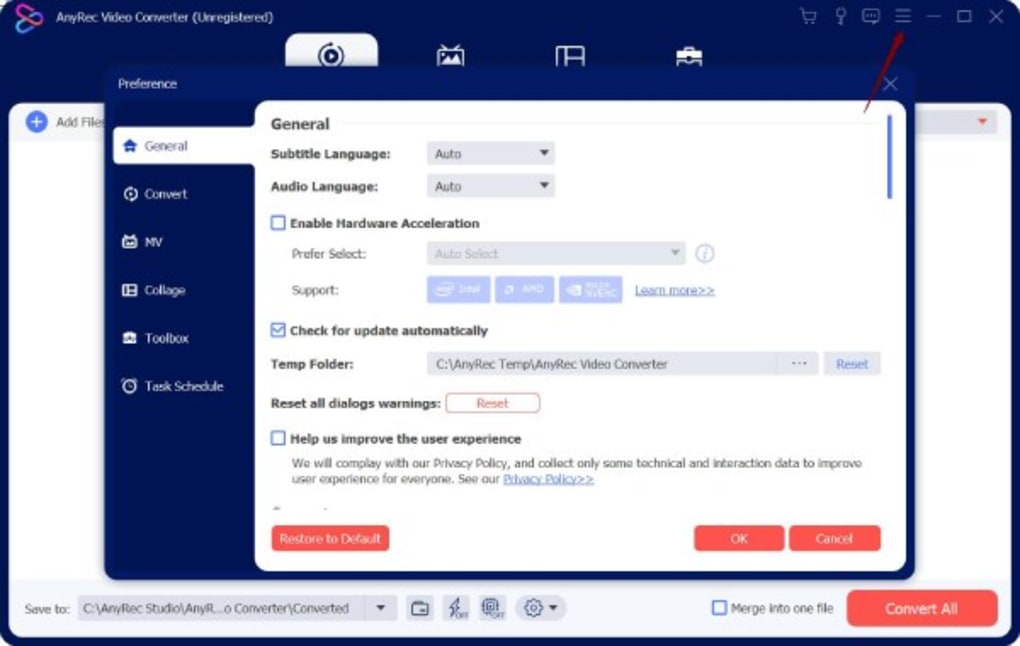
AnyRec Video Converter includes an auto‑update feature. Upon launching the app, it checks for the latest version and prompts you to install any available patches. Regular updates improve codec support, enhance security, and add new sharing integrations—ensuring the tool remains future‑proof across Windows, macOS, Android, and iOS platforms.
Compatibility, Pros & Cons
Supported Operating Systems
AnyRec Video Converter runs natively on macOS 10.14 and later, Windows 10/11 (64‑bit), Android 8.0+ and iOS 13+. The software takes advantage of hardware acceleration on modern CPUs and GPUs, delivering consistent performance across desktops, laptops, tablets, and smartphones. Because the conversion engine works locally, there are no dependencies on external codecs or internet connectivity, making it ideal for secure, offline workflows.
Pros
- Extensive format library covering virtually every consumer and professional codec.
- Fast conversion speeds thanks to GPU acceleration and multi‑threading.
- Intuitive UI that reduces the learning curve for new users.
- Metadata editing and music overlay without needing third‑party tools.
- One‑click sharing to major cloud and social platforms.
- Free trial without watermarks, providing genuine value before purchase.
- Secure local processing ensures privacy of your media files.
- Regular free updates keep the app compatible with the latest OS releases.
Cons
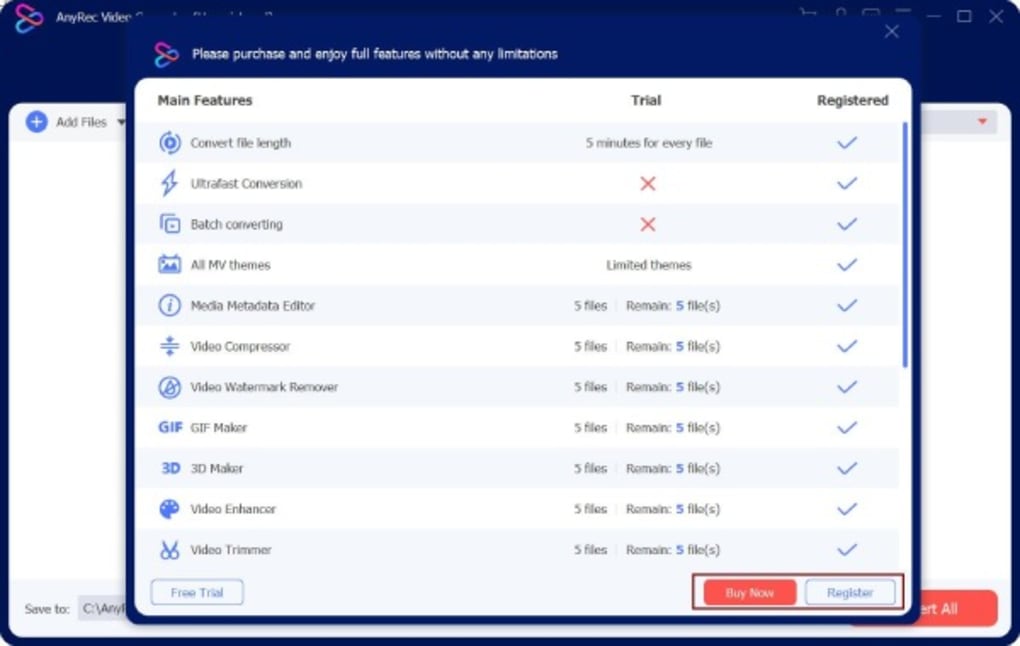
- The trial version limits batch conversion to ten files per session.
- Advanced codec options (e.g., HDR10+ support) are reserved for the paid version.
- Some users report occasional UI lag on older macOS hardware.
- While the app is free to try, the full version requires a one‑time purchase.
Frequently Asked Questions
Is AnyRec Video Converter really free?
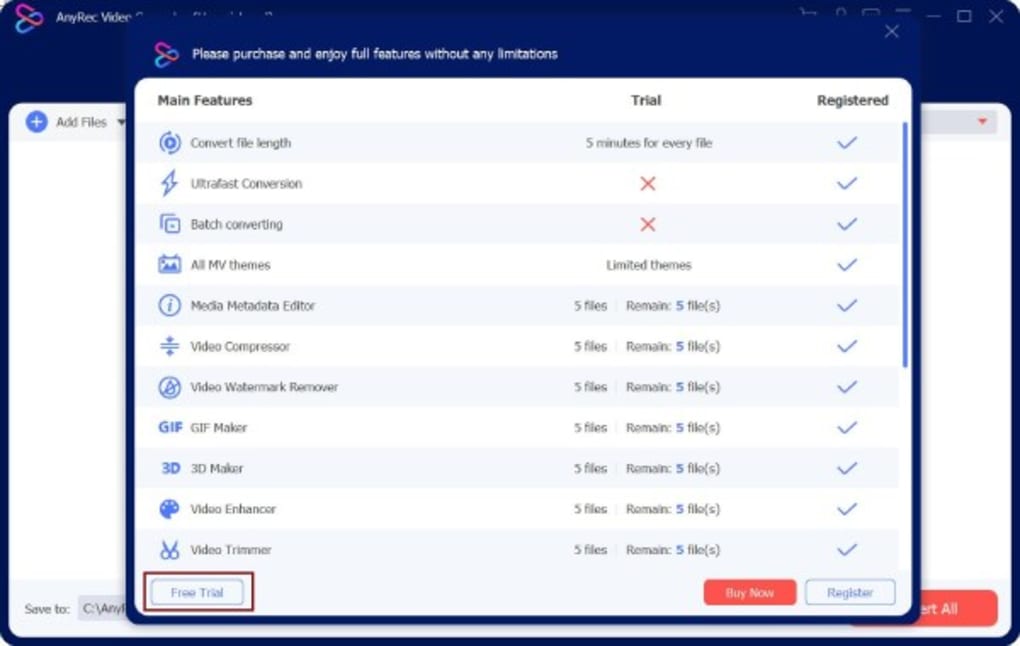
Yes, the trial version is completely free and offers full conversion functionality without watermarks. However, batch processing limits and some premium codecs are only available in the paid version.
Can I convert 4K videos on a Mac?
Absolutely. AnyRec leverages GPU acceleration on macOS, allowing smooth conversion of 4K and even 8K source files, provided your hardware meets the recommended specifications.
Does the software store my files in the cloud?
No. All conversions are performed locally on your device. The app only accesses cloud services when you choose to share the final file, ensuring your original media remains private.
Which Android and iOS versions are supported?
AnyRec Video Converter supports Android 8.0 (Oreo) and later, as well as iOS 13 and newer. The mobile app mirrors the desktop experience, offering quick format swaps on the go.
How do I update the software to the latest version?
The app checks for updates automatically each time it launches. If a new version is available, a prompt will appear asking you to download and install the update. You can also manually check for updates via the “Help → Check for Updates” menu.
Conclusion & Call to Action
AnyRec Video Converter stands out as a robust, fast, and secure solution for anyone needing to transform video or audio files across a massive range of formats. Its free trial delivers a fully functional experience, allowing users to test the speed, UI, and feature set before committing to a purchase. Whether you’re a content creator polishing videos for YouTube, a podcaster converting WAV to MP3, or a casual user who wants to share movies with friends on iPhone or Android, AnyRec provides the tools you need without compromising privacy or performance. The cross‑platform support, built‑in metadata editor, and one‑click sharing make it a comprehensive tool that rivals many paid competitors.
If you’re ready to download a fast, reliable video conversion app that works on Mac, Windows, Android, and iOS, click the button below to get the free trial of AnyRec Video Converter now. Experience seamless conversion, secure local processing, and regular free updates—everything you need to keep your media library organized and ready for any device.
Download AnyRec Video Converter – Free Trial
AnyRec Video Converter offers a smooth, feature‑rich experience with impressive conversion speeds and a clean UI. The free trial is generous, and the lack of watermarks makes it a standout choice for both casual and professional users.







